
Ceramic is mixed with a trade secret ingredient that boils out as the ceramic is sintered (heated). As it is heated the compounds boil and make pockets in the ceramic creating the porous effect.
Elev8 Distribution Customer Service Procedure Training Manual
Customer Service Duties and Jobs to Elev8
New Hire Customer Service Training
- Customer Service Dealings
- Product Knowledge
- Processing Orders
- Confirming Suspicious Orders with Eye4Fraud
- Processing Warranties
- Ordering Drop Ship Shirts from Screen Pro Graphics
- Sales
- Returns
- Processing Wholesale Returns RMAs, DOAs
- Refunds
- Repairs
- Shipping issues/General Information
- Missing items or broken in Order
- Troubleshooting Elev8 Vaporizers
- Phoenix Oath Requests
- Updating Customer Service To Provide The Best Experience
Daily Duties That Need to be Completed
- Check and reply to all emails. Please log important information into Elev8One under customer’s account.
- Check voicemail- for 6001 Please log important information into Elev8One under customer’s account.
- Answer all calls and assist the caller in any way that you can.
- Process orders, and instructions below
- Check notifications messages in Big C
- Check for warranty repairs and process them as needed through Trello.
- Check for Phoenix Oath Glass Repairs
- Using notifications helps with this. Learn how to set up
- Check Phoenix Oath Warranty Claims on Monday, Wednesday & Friday
- Checking orders when printed, look for Liquid Arts Classes , those show up as completed and may give a false sense of order so we have to keep a close eye for these.
- Check on any cremation art orders that may have come in
- Weekly Duties that need to be completed
- Check product reviews and approve what is good.
- Give any updates to the website you find to Web person
Get to know us as a company
-
-
- Bring problems to us to get solved if you do not have the solutions in Q and A. If you have a problem leave it in this form, if you need help ASAP, leave it there and get the help you need.
- Get To Know Elev8 Short Video and Who is Elev8
- Get To Know A Day In The Life of Elev8 Vapes
- Browseelev8glassgallery.com, Simply Soluble, Dub Saq, Elev8 Ambassadors to get a feel for what we offer. No need to spend much time in Elev8, it is where we started.
- Go through this customer service manual
- When you need to look something up here use the search tool in windows by pressing CTRL+F. You can use the arrows to navigate to the word you’re looking for in this document.
- Walk the building and meet all of your coworkers.
- Learn about all departments and what they do and how we work together
-
Customer Service Dealings
- Bad relations will not be tolerated
- When issues arise
- Questions to help serve customers.
- When issues arise with customers being shipping, bad items or some other reason, These are the tools you have to help retain and help a customer in a time of need. This is NOT to be taken advantage of. These can be discounts on items or shipping discounts. This can also be used to help upsell.
- Hours of Customer Service Operation
- Top Down Sales
- As customer service, it is also great for the customer and us for top-down sales. Learn to Greet, Qualify, Pitch and Close here. This is for a customer service rep that is ready to take their skills to the next level.
- Phone System
- Notifications for Calc Sheets
- Check the calc sheets for repairs and warranty claims
- Checking orders
- Up sales. This is done for 2 reasons. One to offer the customer a better experience, and two, to make more money per purchase. A good up sale results in a win-win.
- You can offer customers up to 25% off on upgrades.
- Customer Website Issues
- Expired password user account email
- Email and Phone Scripts for customer service
- BigCommerce Guest Tie In
- Tie in any guest so that if they have another email, it is properly updated.
Product Knowledge
-
- Take Elev8 University Retail as well as Elev8 University Wholesale
- Know the Questions and Answers. This is where you can find tons of info. If you do not see it, PLEASE ask in the questions section, so it is added.

- Walk through the warehouse and learn about the different products we offer and how they can be possible up-sells
- Work with Steve to build up our different vaporizers to really know what goes into each unit. He is always here for any questions you may have with the units.
- Product Sales Training
- The Silver Surfer Vaporizer
- How To use the Silver Surfer (can be used to give customers)
- Heater Troubleshooting
- Questions To Ask If there is a VAPE problem
- See our Trade-in program and what you can offer Here
- Super Surfer Vaporizer
- SideKick Portable Vaporizer
- If there is a problem
- ELEV8R Vaporizer
- Wax Maxer Personal Portable Vaporizer Pen
- Desktop Vaporizer – overcoming objections for Sales Training
- Concentrates in the Elev8 Desktop Vehicles (Vapes)
- Glass TERMS
- Learn about the custom repeatable glass for the Elev8 line of Vehicles
- ELEV8 Premier Pipes
- Learning about Dab Straws and other concentrate devices Elev8 Distribution sells
- Sales Training for Elev8 Grinders
- Sales Training: Elev8 r Grinders and Jars
- Registering our Vapes
- The Silver Surfer Vaporizer
How To Use Elev8 Systems
-
- How To Work The Voicemail
- How to access Big Commerce
- Elev8GlassGallery.com/admin
- How to add a Manual order in Big Commerce
- How to Convert a Guest Account in Big Commerce
- How to add a Customer in Big Commerce
- How to Process Orders in Big Commerce
- How to check Orders for Fraud in Big Commerce when to ask for ID Verification
- How to use Elev8.One
- This is our CRM ( Customer Relations Management Software) This is very very important to use and is crucial to document your interactions.
- LEAVE NOTES FOR ALL CUSTOMERS IN ELEV8.ONE. This is very very important as we work as a team, and this is the only way we can communicate with the customer as one team. Learn to leave notes
- If there is an address change on an existing order add that to the summary of the customer in Elev8.one as well as notate it in Big Commerce for the order being dealt with.
- After each contact that you resolve a problem, help the customer or reach out, we need the documentation of that interaction
- How To Login
- How to add a contact
- A contact is a person that should be tied to an account
- How to add/check notes
- How to add an account
- An account is a shop, not a person.
- All notes should be saved in the notes section for the account and not in the contact. Contacts change, the accounts will never change.
- Accounts are mostly always handled by Wholesale Reps.
- How to use Trello and all templates
- Big Commerce notifications need to be checked daily and dealt with as needed
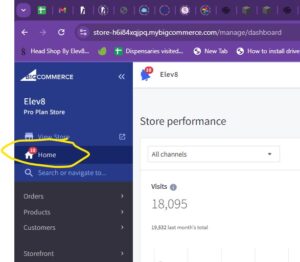
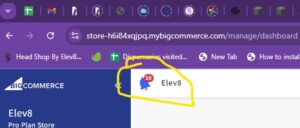 Click on Home, then click on the bell with the red balloon
- Processing Orders on Big Commerce
- The first step in the morning for Customer Service is to process order from the previous day and get them to Shipping. (Make sure to check Customer Service Email to see if there are any emails related to the days orders)
- Log into BigCommerce
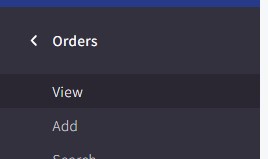
- Once into the control panel of Big Commerce go to the Order in the left side bar
- Click on View
- Change the filtering in the top bar to Awaiting Fulfilment.
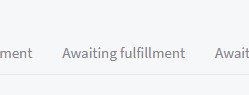
- Click on the box to check all Awaiting Fulfillment Orders
- Look for Dropship and Wholesale order and uncheck
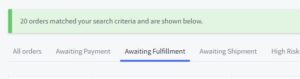
- Wholesale orders will be drop ships of companies we work with, or wholesale orders that are customers of ours. You have to look for our drop ship customers and wholesale customers. You may also have open orders and look at them.
- Print packing slip ONLY
- Mark the order sheet with D/S on top for Drop Ship Orders
- Mark order sheet with W/S on top for Wholesale Ship Orders
- Look for Dropship and Wholesale order and uncheck
- Look for orders other than awaiting fulfillment.
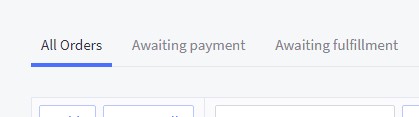
- Click all orders
- look for awaiting payments, it is a different color also. If it is a wholesale order check with the sales rep to see if they want the order printed. Unless they are anything Elev8.
- For the wholesale order you will turn it to awaiting fulfilment so it can be printed with the other orders.
- Go back to awaiting fulfillment
- On orders over $300. The status of the insurance can be seen in either the Notes for the order on the Big Commerce control panel . This information is found by looking at the order. Click on the little person icon next to the order total.
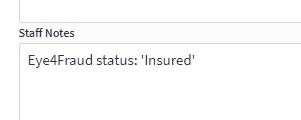 once Confirmed the order can be printed to the Shipping Desk Label Printer.
 - If the order is over $300 dollars Eye4Fraud will automatically process the order for insurance. So all that is needed is to confirm the Insured (If the order was paid for with Sezzle Payment Method, it is not processed through Eye4Fraud, and does not need to be checked, this can been seen midway down the left column of the order).
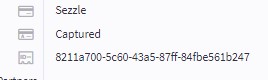
- This order can also be printed on the Shipping Desk Label Printer
- Other indicators of a trigger to manually process for insurance, are $200 to $299 orders that have Next Day shipping.
- Orders that have a different Billing than the Shipping Address.
- Orders that have drastically different names between the Billing and the Shipping address.
- Orders with Billing addresses outside of the United States but are shipping to Forwarding companies (Usually located on Border towns or in Florida)
- The only way an order will be processed with a AVS-Street N, AVS-ZIP N and CID Match and not processed for insurance is if the order is under $100, and doesn’t match any of the previously mentioned patterns.
- This does not instantly mean the order is fraud. Look for the obvious signs if the Country does not match for the Billing and Shipping address, if the names do not match between Billing and Shipping. If in doubt and the order is over $150 manually process for insurance.
- Pick Print invoice for selected and click confirm
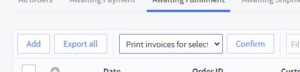
- Scan all orders in the preview print before pressing print
- look for odd coupon codes, or anything odd.
- Pick Zebra 500 printer and click print, make sure print size is 60.
- Change all orders to Awaiting Shipment and click confirm
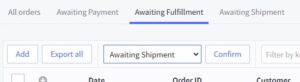
- As each order is printed to the Shipping Desk, you will return to the main orders window in BigCommerce and change the status of the order to Awaiting Shipment
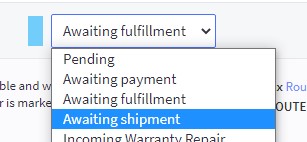
- Stamp Orders
- Once all Awaiting fulfillment orders are printed and the status are changed to Awaiting shipment, click back to All Orders
- Click into the Filter by keyword Field and search for Completed
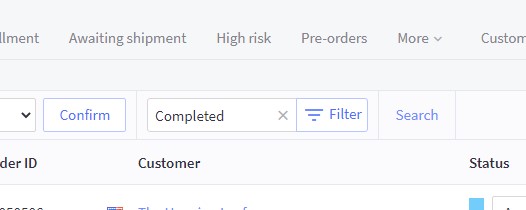
- Sort by date by clicking on the Date heading at the top of the list
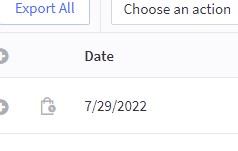
- The first time you click onto Date it will list the oldest orders, click date again to sort to the newest orders.
- Look for Liquid Arts Classes
- If there are any recent orders for Liquid Arts classes, look in the notes and if there isn’t a note regarding “Logged in Google Form, XX/XX/XXXX”
- You will need to proceed to the booking form for Liquid Arts Classes
- Fill that in with the Customer’s information, how many Liquid Arts class sessions were purchased, for the date desired for class just click the current date, Select Yes, the customer has already been billed, fill in your name as the person submitting the form. Click Submit.
- Once that is complete return to the order and update the Staff notes with the “Logged in Google Form, XX/XX/XXXX” click save. Status does not need to be changed for these orders.
- Applying discounts to manual orders from the back side
- What do do with fraudulent orders
- Add any fraud order to this sheet
- Instore Pickups orders need to be stitched so that the shipping address is 6331 East Platte ave. This will put the taxes in the proper place, as well as saves the customer money as we are not in the city.
- Processing 1 order with 2 payments
- Processing Payments
-
- We accept credit cards, cash, checks/money orders, PayPal payments*, and 3rd party payment solutions.
- Coupon Codes For Orders Over The Phone On Big C.
- When building an order manually, coupon codes should be applied before collecting the credit card/debit card information from the customer. If you apply a coupon code after writing in the credit card information, BigC clears out the entry fields for the credit card so you end up having to ask the customer for all of the numbers again.
- International Orders
-
- Requesting PayPal Payment
- *PayPal Payment is not offered on the frontend of the website, the customer will have to call in to request it, we will send them a PayPal request to complete the transaction*
- 1. Open Chrome and go to www.paypal.com
- 2. Log in using the email address paypal2@elev8distribution.com
- Select Request Money
- Add the customer’s email address and amount requested. All orders for items select Goods. All repair orders need to have Services selected.
- Click Continue. Verify all information is correct.
- Click Request Money.
- Verification of payment will be checked on the PayPal dashboard.
- *PayPal Payment is not offered on the frontend of the website, the customer will have to call in to request it, we will send them a PayPal request to complete the transaction*
- Authorize Payments
-
- There are three different methods for completing a payment through Authorize.net. Making an invoice is one of the eaisest, fastest and safest ways to get a customer to pay for
- While entering the manual order on Elev8glassgallery.com, and the customer is ready to pay immediately **READ THIS BEFORE TAKING THE CARD NUMBER OVER THE PHONE YOU MUST NOT RECORD THE PHONE CALL**
- When on the final page of the order process look under the Finalize in the top right corner of the page, there will be a drop down menu, choose Authorize.net.
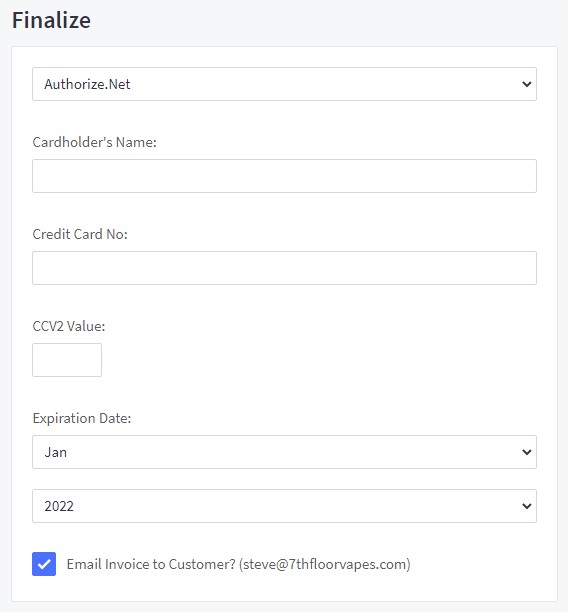
- Fill in the pertinent information from the customer.
- Make sure the email at the bottom of the window is accurate for the customer.
- Confirm the amount you are billing the customer one more time.
- Press Save and Process Payment in the bottom right hand corner of the page.
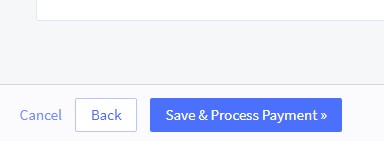
- Confirm order processed on the main view orders tab in Big Commerce.
- When on the final page of the order process look under the Finalize in the top right corner of the page, there will be a drop down menu, choose Authorize.net.
- If the customer has already placed an Order in the system and would like to add products to the order, and they are ready to pay immediately, you will have to process additional payments through the Virtual Terminal in Authorize.net
- Open Chrome and go to www.authorize.net
- Log in
- .Click Virtual Terminal from the left side menu under Tools
- .Put in all information, credit number, name of customers, billing address etc
- Double check amount is correct and the information
- Click Submit
- Make sure payment was ACCEPTED
- If the payment was DECLINED click on transaction id to find out the reason.
- If the customer is wanting to place an order but is not ready to pay immediately, or does not want to read their credit card number over the phone, Sending a Payment Request through Authorize.net
- From the home page, once logged into Authorize.net, click Invoicing on the left-hand column
- Then click the +Create Invoice button on the right, above the list of invoices
- Fill out the information, including the Billing contact, email, invoice number, brief description, and then the products. (For simplicity, you can just make the item, the invoice number, and the price, the total.)
- Click Send at the bottom, and you should get a green confirmation bar across the top of the screen.
- This has emailed the customer a payment request so they can go in through a link to make the payment themselves.
- While entering the manual order on Elev8glassgallery.com, and the customer is ready to pay immediately **READ THIS BEFORE TAKING THE CARD NUMBER OVER THE PHONE YOU MUST NOT RECORD THE PHONE CALL**
- There are three different methods for completing a payment through Authorize.net. Making an invoice is one of the eaisest, fastest and safest ways to get a customer to pay for
-
- Check/Money Order
-
-
-
-
-
-
- We do not suggest mailing cash to pay for an order, there are many ways that can go badly up to and including lost in the mail, lost through third party shipping, package damaged and some or all of the funds missing, no paper trail of receiving the payment on our accounting system, strongly suggest Cashiers Check or Money Order. Personal Checks are accepted.
- Customers can mail checks/money orders to:
- 6331 E Platte Ave Colorado Springs, CO 80915 Make the payable to Elev8 Distribution LLC
- Orders paid with Personal Checks will have to be held and will not ship until clearing period for check has elapsed.
-
-
-
-
-
-
- Making a Draft Order
- Custom WRS Orders
-
-
-
-
-
-
-
-
- WRS Orders
- Confirm the WRS image is up to specs. You can ask marketing for info. The image needs to be 1920×1080 72DPI or more. There are so many ways to check. But it has to be full in the PSD template.
- You can use this program to see PSD files also Photopea
- All WRS orders need to be placed in Trello. The card starts on your customer service board. If they are custom images you will need to fill out the WRS ORDER – NEW OR FULLY CUSTOM DESIGN ***Template***.
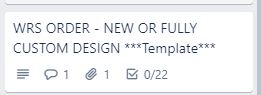 Read the cards checklist carefully and fill it out accordingly. If it is a WRS we already make then you will need to fill out the WRS Existing Build ***TEMPLATE***. Move completed cards to WRS Order list.
 - Highlighting Invoices
- Highlight all expedited shipping methods
- All quantities more than ‘1’ need to be highlighted
- All screen sizes
- All Add ons
- All vaporizers
- All colors other than clear
- All tubing sizes
- All 220v units need to have voltage highlighted
- Shirt sizes and colors
- All 200v units need 220v plus the type written on the bottom
-
-
-
-
-
-
-
- Create your own glass orders
- 1. Once the order comes in and is put in BigCommerce. Make a new trello card for the order under GLASS TEMPLATES
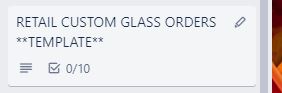
- 2. Add the order number and description in the title of the card.
- 3. Add the retail price paid for item in the description box.
- 4. Once glass piece is done, the Glass Manager will add a picture that needs to be sent to customer for approval.
- 5. Once the customer approves item, comment on card to have the piece sent over.
- 6. Once the item arrives here, if it is a wand, mouthpiece, water filter, or ice chamber it needs decaled. Move trello card to decal station. Take glass over to decal.
- 7. Take order form to shipping and let them know they should be getting item from decal in the next couple days.
- 8. If the item is a knob or heater cover which don’t need decals, take item and order form to shipping and place in custom glass order box.
- 1. Once the order comes in and is put in BigCommerce. Make a new trello card for the order under GLASS TEMPLATES
-
- Processing Liquid Arts Classes
-
How to check suspicious orders with Eye4Fraud
- 1.Login to Eye4Fraud’s website.
2. Use the username customercare@elev8distribution.com and password R1deTheWave!$ 3. Search for the order number you are attempting to insure. 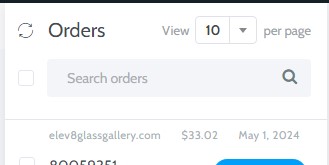 4, Once you have the order pulled up, check the box to the left of it.
 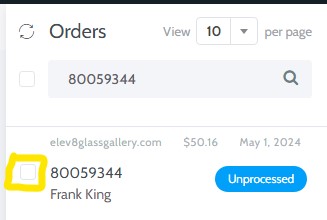 5. Once the check box is ticked, click on Process.
 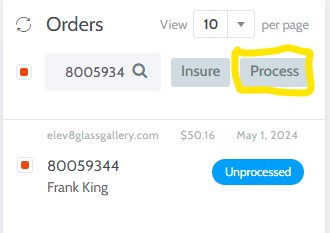 6. Depending on the order it may return a status immediately or may go to a status or Pending Insurance. 7. To check on the status of the processing for an order uncheck the left side box, but leave the order number in the search field, click the refresh button.
 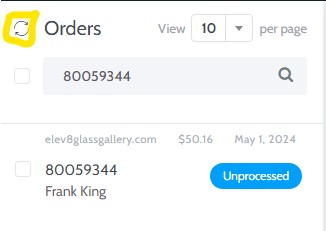 8. The order will eventually go to one of three status’s Insured, Declined, or Fraud. Insured means good to ship out, Declined indicates that there is information that does not match the order’s customer information and can not be completely confirmed, or one or multiple other flagged information exist, Fraud means that the IP was flagged for previous fraud order or the card number has been flagged for fraud.
-
- Gmail Customer Support Guide
- Google Drive (sheets, docs, and all templates)
- Gmail Customer Support Guide
How to Order Shirts from Screen Pro Graphics
- Open the Order PDF
- Fill in the ship to address.
- Fill in the Design, Size, and Quantity.
- Save the copy of the PDF with “-(Customer Last Name) added to the file name.
- Open up the Customercare Email account, and start a new message to richard@screenprographics.com
- Attach the copy of the PDF for order
- Send the message
- How to use Ship Station
-
-
- Return Shipping Labels
- Open Ship Station.
- Select Rate calculator in the top bar
- Fill in the Zip Code of return with the customer’s information
- Select the weight and Box size for the package coming back to us.
- Fill in weight (5lb for desktop vapes, 3lb for LSV or SideKick
- Click on the USPS section of rates
- Once you click on class of service, click Configure Label, you will fill in the full address for the customer.
- In the label configuration screen click on the check box by Create a Return Label.
- RMA number is auto generated, you will copy it from the label to the notes of the big commerce warranty return order
- Once all information is correct, make sure that the Email address is filled in, click on Authorize & Email
- Tracking Packages VIA Ship Station
- Sometimes the tracking number that is populated in Big Commerce may not be correct for whatever reason, if you are tracking an order and the number is showing Label Created, or Pre-shipment Status when you know the package has left the warehouse, the next place to go is to Ship Station to confirm the correct tracking number is in Big Commerce.
- Open a new browser window tab, navigate to https://shipstation.com or click on the link
- Once there, locate the username and password.
- Once logged in, click on Shipments in the top bar
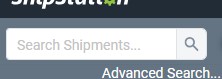
- There will be a search bar that you can input or paste the Order number or Customer Name.
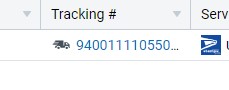
- Once the package is searched for click on either the Order number in the ShipStation Packages, or you can click directly on the tracking number which will open a new window with the status of the package.
- Return Shipping Labels
-
Customer Calling Regarding an Ebay Order If a customer calls in regarding an order processed through ebay, take a message and email the specifics with contact information to theresa@elev8athome.com Updated Vaporizer Repair Procedure as of March 2023:
- Have the customer register the vaporizer if they haven’t already done so. They must register by clicking the ‘Registration’ link or the ‘Register Now’ button on our Warranty page. If the customer is on the phone, we can file the warranty registration for them.
- Offer the customer a repair kit and instructions, or offer our mail-in repair service.
- If the customer reaches out through email or contact form, have the customer file a claim for the repair service using the proper form online (click the ‘file a claim’ button on the Warranty page), confirm the warranty claim here.
- If the customer is on the phone, we can forgo the file a claim process since we will be entering the customer’s information into BigCommerce.
- Never ask customers if they prefer to mail the unit to us themselves, it is better for us to provide a return label to the customer so that we can keep track of the shipment. If a customer has already mailed their unit in, go through all these steps (without creating a return label) to ensure proper filing.
- Open a ticket for the customer’s repair service on BigCommerce.
- Choose line item ‘Warranty Repair (choose device)’. It will automatically populate to have a dollar amount. If the vape is covered under warranty change the price of the service to $0.
- The initial shipping amount will be the cost of the return label, you can get this by running a quote on ShipStation (click the calculator icon at the top of the page).
- Advise the customer that a ticket has been opened and that any emails about this ticket are not a request for payment. Once the item has been repaired, the order will be updated to reflect the amount due. If their unit is out of warranty the cost will be the $30 repair fee plus shipping costs. If the unit is in warranty then we will only charge for shipping costs.
- Inform the customer via email or phone that they must remove all of the glass components from their vaporizer, and if the vaporizer is dirty it should be cleaned with alcohol before being shipped to us. Shipping carriers will reject any package that has a noticeable smell of cannabis. If we receive a dirty vaporizer we will charge an additional cleaning fee. If we receive dirty glass components they will be thrown away and the customer will have to purchase these components again unless they already have spares.
- Prepare a return label for the customer and email it to them from your Elev8 email address. Do not automatically email the label to the customer from within ShipStation as we have no way to verify that they received the email.
- Customer service processes the return upon arrival. When the unit is received in the warehouse the representative that is handling the repair logistics will communicate with the customer via email that the unit has been received and is being handled by a repair technician.
Example email verbiage “Please allow us up to 48 hours for the repair to be finished. In the meantime, if there is anything you would like to add to your order, you get 30% off. This includes heater covers and other accessories. We will contact you when the repair is done and see if you would like to add anything and to collect the shipping cost.”
A trello card will be created which includes the description of the unit and all items that were shipped with it, as well as photos to confirm condition in which it was received. When ready the unit is put on the Incoming repair shelf, and warehouse production team are verbally told that a unit has been placed on the shelf for repair. - Shipping notifies customer service when the repair is complete and ready to be shipped back.
- Customer service contacts the customer to upsell, discuss the service costs, and to collect payment for the service, shipping, and any additional fees. It is a good idea to upsell the customer to get both a heater and dimmer. Each on is $30 and then only $10 to add the other. This gives them a fresh new full setup. We will also return any good parts.
- Once payment has been collected, the unit is taken to the shipping department to be shipped back to the customer.
- SEE what to do if a customer needs it cleaned
Warranty Process for Vaporizers Processing a Repair in BigCommerce Vaporizer Repairs
-
-
- ANYTHING PURCHASED ON EBAY FOLLOWS STANDARD PROTOCOL
- Look at solutions to try before sending in for a repair
- Repair Policy (RMA)
- The Silver Surfer and Da Buddha vaporizer come with a 3-year limited warranty. The Super Surfer comes with a 2-year. All Wax Maxer batteries come with a 3-month battery warranty and 12-month replacement plan which allows the customer to purchase a replacement part at 50% off. Essences come with a 3-month warranty on the battery ONLY. Anything purchased from an unauthorized reseller ie eBay or Amazon will have a VOIDED warranty.
- To verify a vaporizer is within the warranty ask for a receipt or if purchased from Elev8 Distribution or Elev8 Glass Gallery directly, verify in Bigcommerce. If someone doesn’t have a receipt or proof of purchase then their vaporizer is not covered under warranty.
- If a vaporizer is out of the warranty window then a $30.00 repair charge will apply.
- All repairs will require round-trip shipping charges. We recommend using FedEx to ship vaporizers for added insurance and reliability. If the customer wants less expensive shipping you are allowed to use USPS. We aren’t however able to send return shipping labels via USPS. If a customer chooses USPS, make them aware that they are reasonable for shipping the vaporizer to us and paying any repair charges and return shipping.
- All vaporizers purchased within 30 days from Elev8 Glass Gallery or an authorized reseller will be sent a return shipping label free of charge to our customer.
- If a customer is international they will have to ship the vaporizer to us and pay for return shipping prior to sending the vaporizer. If the vaporizer is within the 30-day window they will be reimbursed for shipping cost up to the cost it would cost us to ship the vaporizer to them. You can use the website to figure out the shipping charges.
- We ask all customers to not return anything glass when sending in repairs. Unless a knob is in need of a repair.
- Customers are allowed to send in money orders for return shipping and repair charges if needed. Ask them to include payment in the box.
-
How To Do A Repair (Vaporizer) Note: the following procedures for vaporizer repairs contain outdated information. We’re keeping them here so that we can clean these sections up and update them. To set up a vaporizer repair for a customer, use the 11 step procedure above this section (“Updated Vaporizer Repair Procedure as of March 2023”).
-
-
-
- Glass repairs come in through this spreadsheet. Custom glass also comes in here from both retail and wholesale customers. Here is the form that the customer fills out.
- International Repair Process
- If a customer is overseas then they will have to prepay for return shipping plus any repair fee. We are unable to process return shipping labels for international customers, they will have to send the vaporizer back to us on their own. They are able to pay via PAYPAL, credit card, money order, check.
- Questions to ask when someone calls in for a repair
- Which unit are you using SSV, DBV, LSV, SideKick, Super Surfer?
- Troubleshooting
- Basic Vaporizer Check and troubleshooting
- **WARNING** Please do not perform any of these checks until you are sure your vaporizer is completely cool. We suggest you have it turned off for at least 30 minutes prior to continuing.
- First, let’s check the position of the heating element. It should be 1/8-1/4 inch from the top of the heater cover. To adjust the height of the heating element, first, take off the heater cover. You can do this by gently twisting back and forth while gently pulling up on the heater cover. After safely removing the heater cover, gently pull up on the heating element, and be careful not to pull the heating element out of the unit. Replace the heater cover back on the heater stand. This can be achieved by twisting back and forth and pushing downward. Once the heater cover is firmly back on the heater stand, check the position of the heating element. If you feel the heating element is too high, take your pick and gently push it down. Now turn your vaporizer on to the 12 o’clock position and let heat up for a minute or two. Try vaping your herb. If this fixed your problem, awesome! If not please keep reading.
- Locate the light on the back of the vaporizer right above the cord. Turn the vaporizer all the way on, to the highest temperature. Let the vaporizer heat up for about 30 seconds. Your heating element should be glowing a bright orange. Now, turn the vaporizer down to about halfway, the heating element should be glowing an orange color but not as bright. Also, make sure the light is brightening and dimming as you turn the temperature up and down.
- Lastly, we suggest making sure your temperature matches your draw. If you are drawing faster turn the temperature up if you are drawing slower turn the temperature down
- Silver Surfer Trouble Shooting
- WRS Issues/Questions and answers
- Da Buddha Trouble Shooting
- Super Surfer Trouble Shooting
- SideKick Trouble Shooting
- Wax Maxer Trouble Shooting
- Elev8R Trouble Shooting
- Basic Vaporizer Check and troubleshooting
- When and where did you purchase your vaporizer?
- What issues are you having? (If the heating element is getting warm more than likely the vaporizer is working correctly.)
- If the heating element is working go through the basic vaporizer check, i.e. the position of the heating element etc.
- If the heating element isn’t working then proceed with letting them know we can send them a repair kit or take the vaporizer in for repair.
- If the vaporizer is under warranty there isn’t a repair fee just round trip shipping charges. If they choose to get the kit, the kit price will be covered but shipping charges apply.
- If the vaporizer is out of the 3-year warranty or if the customer can’t provide documentation of purchase, there is a $30.00 repair fee on top of the shipping cost. If sending the kit, the kit cost $25.00 outside of the warranty, shipping charges apply.
- Ask the customer if they have the new or old heater stand style. If they have the old style ask if they’d like to upgrade to the new style for a $5.00 fee.
- To figure out return shipping cost you can use ShipStation however more times than not the round trip shipping cost is $30.00 for SSV or DBV and $25.00 for LSV.
- If the customer is international we will need them to send us the vaporizer back on their own due to use not being able to send return shipping label via email. They will, however, be responsible for return shipping, you can use the website to figure out this shipping cost.
- Ask for the payment method and get information.
- Process payment using the preferred method. Refer to the processing payment section for instructions on how to process payments if needed.
- Processing Received Repairs
- Once a repair has been received here follow the following steps.
- Look at the return shipping label for Order Number, which should be located below our address and phone number on label.
- After locating the order number look order up in BC (if a customer sent on their own, open the package and reach out to the customer and set up order.
- Print order and keep with unit
- Open box and throw away any unwanted packing material and put bubble wrap and peanuts in the shipping materials boxes.
- Inspect the vaporizer for damages
- Keep all glass that is received with the vaporizer, this glass needs to go into the dirty glass box in the warehouse. Knobs stay on the vaporizer and will be returned with the vaporizer.
- In Trello. go to the Customer Service board and select Repair template. Duplicate card.
- Fill out the trello card, noting any damage to the vaporizer and if anything was received with it like knob or storage bag.
- Take repair and printed order to repair section in the warehouse
- Notify customers that their repair was received
- Shipping Rate and Fees
- Round Trip shipping inside the US- Use ShipStation to figure out cost. Make sure to double the total for round trip cost.
- Repair Fee for outside of warranty- $30.00
- Repair parts and orders for Access. inside US- $15 each way
- Less than a 30 day repair is free shipping
- DOA is repair/restock shipping is free
- Do-it-yourself Repair Kit cost YOUTUBE LINK
- Dimmer switches and heating elements are covered if the vaporizer is under warranty.
- Tension Bar Upgrade Kit- $12.00 plus shipping
- Heating Element-$25.00 plus shipping
- Dimmer Switch- $25.00 plus shipping
- Copper Cap- $8.45 this price is total
- Shims $5.00 plus shipping
- Dimmer switches and heating elements are covered if the vaporizer is under warranty.
- Heating Element Replacement YOUTUBE LINK
- *Please read through the instructions completely before attempting to change the heater in either the SSV or Da Buddha Herbal Vaporizers.
- Remove the 2 base screws.
- Cut the tie wrap to remove the heater.
- Disconnect wires from the dimmer by pulling apart male and female connectors.
- Reconnect male and female connectors from the dimmer to the new heating element.
- Insert the heater into the metal heater stand, and zip ties the heater in place to prevent it from slipping down.
- Replace your base and two screws.
- ** If the dimmer switch has to be removed to install the new zip tie, just remove the nut after Step 1, but be sure to reinstall dimmer switch before step 2.
- Dimmer Switch Replacement Instructions YOUTUBE LINK
- Unscrew the nut holding the dimmer on the front side of the vaporizer, using ground down 10mm deep well socket.
- Cut the zip tie that holds the heater in place.
- Cut the two black wires on the dimmer switch (cut close to the blue boot).
- Put the blue boot on and crimp it to the heater (you may have to remove the heater during this process).
- Install the new dimmer switch. Before tightening the dimmer switch nut make sure that the green ground wire is wrapped around the dimmer switch.
- Twist the wire from the indicator light with the black wire on the dimmer, and crimp the boot on the heater to the twisted wire from the dimmer and light. Put the heater back through the metal heater stand, and zip ties the heater as it was before to the dimmer box.
- .
-
-
- Phoenix Oath Requests
- Customer who purchase the Phoenix Oath Insurance on pieces will contact most likely asking “I have just broken the piece I purchased insurance on, how do I replace this?” here are the steps to follow to help them out.
- You should be notified in your inbox that a claim has been filed.
- Also, each Monday, Wednesday and Friday open this sheet and complete List H with a yes when the customer has been taken care of
- First confirm that the customer has purchased Phoenix Oath coverage on the product by finding their previous order in our system. A purchase of a vaporizer does not have Phoenix Oath, but a full glass kit or individual pieces or parts can have it on them.
- Once that is confirmed, use the original order to confirm the cost of the product without the Phoenix Oath 8%, as our MSRP may have changed since the customer purchased the product.
- Go to the Marketing tab in the left side bar of BigCommerce Backend, once there go to promotions and then Coupons.
- You will be creating a new coupon code for 50% off of the original value of the piece that is covered by Phoenix Oath, if the value of the part has gone up since the time of purchase you can give 50% on the new price. If the piece is no longer available then offer 50% credit based on original purchase price for use on another Elev8 Glass Product available on the site.
- Here is the folder to see images for broken glass
- When creating the code just make a randomly generated coupon code
- Click “Create” in the top right corner of the window.
- Select “With Legacy Editor”
- Use the customers name for the Coupon Name
- Change the discount type to Product Discount and then select “Apply an amount or % off to Product X”
- Search for the product they are replacing
- Select 1 of the product, switch to amount off and put in half the value of the product.
- Select the Customer Group as Retail
- Select Limit Total Number of Uses and select 1
- Check the box next to “Yes, make this discount available to customers”
- Add the following message to the Congratulations Notification box “Phoenix Oath replacement discount.”
- When these are all done, click Save at the bottom right corner.
- Send the code to the customer and tell them that you will only be able to use this on the replacement product.
- Returns and Replacements
-
-
-
- REPLACEMENTS
- We are not responsible to replace any missing or broken items received from any vendor other than Elev8. This excludes vaporizers, they can be repaired under our warranty rules.
- REPLACEMENTS
-
-
- Video Link See Elev8 Vehicle Sheet
Shipping Issues/General Information Shipping issues can be everything from “why hasn’t my order shipped yet” to “This is showing delivered but has not been” here are a couple of links and general informational articles to assist with resolving those issues. Shipping Issues and How to Resolve Them. Missing or Broken Items in Shipment.
-
-
- Replacement Policy
- If a customer receives an incorrect item that is less than $50.00 will receive a replacement without needing a return item first. We ask for a photo prior to sending a replacement.
- If a customer receives an item that is broken will receive a replacement without needing a returned item. Again, we ask for a photo prior to sending a replacement.
- If a customer is missing an item from their shipment will receive a replacement.
- If a customer receives an item over $50.00 by mistake, will need to return the item before receiving the correct item. In this case, we will send them a return shipping label via email.
- Broken Item Replacement
- Verify item was purchased from Elev8
- Ask the customer to provide a photo of the item
- Verify item is broken
- Request photos of the exterior of the packaging for visible signs of damage during shipping
- Add a note to the original order in BC about the broken item (note box is located on the last page while editing order, under the products listed).
- Contact Adam to file a damage claim with the carrier
- Let the customer know we will replace the item
- Make a new order in BC for the item/s being replaced.
- For shipping choose “custom” option and type in “Free Shipping (replacement)”
- On the last page apply a discount for the parts being replaced
- Add a note under the Customer Visible section at the bottom
- Select “ Manual Payment” than type “No Payment Needed”
- Add item to Warranty, Broken, Missing, Wrong sheet in google docs
- Copy and paste your note into Elev8.One under the contact notes
- Broken Item Replacement
- Replacement Policy
-
-
-
-
-
- Missing Items in Shipment
- Verify order was made through Elev8 Glass Gallery in BC and was received recently
- Go to shipstation
- search for order by order number, email or phone number.
- Look at notes from buyer and look for time stamp
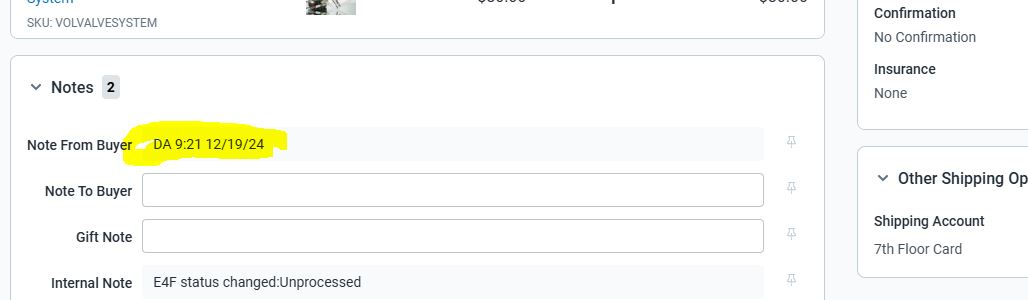
- Confirm with shipping(video recording) that the item was not packed in the package.
- Memo order in BC about the missing item
- Missing Items in Shipment
-
-
-
-
-
-
-
-
-
- Make a new order in BC for the missing product (create with free shipping using the cheapest shipping method).
- Add a discount to make order equal $0 and select “Manual Payment” and put the description as “No payment needed”
- Notate in customer view comments that this is a replacement for missing product on the previous order.
- Add item to Warranty, Missing, Wrong sheet in google docs
- Copy and paste your note into Elev8.One under the contact notes
- Let the customer know we will send the missing items as soon as possible.
- DOA Vaporizers
- If a customer receives a vaporizer that isn’t working upon arrival you will need to send them a Return Shipping Label.
- Notate the account in original order in BC.
- Once the vaporizer comes back to us we will ship a new working unit back to the customer the same day.
- The DOA unit needs to be repaired and restocked.
-
-
-
-
-
- REFUNDS
- Only items returned within 30 days of unused and are refunded minus shipping* (Excluding Elev8 Premier Glass and Outside Artist Glass) (*Refund shipping if the item was received defective or broken*). Vaporizers can be refunded in full minus anything that is used i.e. whip kit or that is not returned.
- Refunds can only be given after 24 hours. Here is a link to Big C refunds.
-
-
- Refund Procedure
- There are multiple ways that customers can request returns or refunds, through their account on Elev8GlassGallery.com, through the contact us link on the site, or through phone calls, when a return/refund is received through the automated site function or contact us link the best process to continue to the conversation by reaching out to the customer over the phone, that way you can better assess their reason for the return.
- If you can not reach the customer by phone or they are in an international country, respond to the email address that was included in their order or on the contact us email.
- If the customer’s issue can not be resolved and they do in fact want to continue to return the product.
- Add a comment on the order, in the customer visible section about an exchange, refund, or store credit.
- Request items to be sent back and must be unused
- Once received, verify all items are present and in unused condition (no refunds can be given for used products)
- Make a refund request on the Refund Request PENDING sheet in Google Docs.
- Copy and paste your note into Elev8.One under the contact notes
- Send an email or call the customer to notify them we received their item and refund is being processed.
- Take the item to ship for restocking
- Refund Procedure
-
- RETURNS
-
-
-
- Customers can return any Elev8 Product that was purchased from Elev8 Distribution directly and is unused for a refund within 30 days of purchase, qualifying returns will be subject to a 15% restocking fee of purchase price. Shipping will not be refunded.
- Outside Artist and Elev8 Premier Artist Pieces are excluded from return.
- International Returns
- Since Elev8 Distribution and Elev8 Glass Gallery products are sold worldwide, it is possible, we will have to process a return. Whether it is a repair or return, there is a different process for handling International shipments. We are unable to send a Return Shipping Label to retrieve the package, so the customer will be responsible for returning the package from their country. If it is a repair, we will need to collect the return shipping charges to return the unit back to the customer. If it is a mistake by Elev8 Glass Gallery, we will be responsible for providing a replacement, and depending on the item, it is possible we could ask for the item to be returned, and again Elev8 Glass Gallery will be refunding shipping charges to the customer. Refunds will need to be processed by a manager. Email responses should be general and depend on each case.
- Processing Returns
- Open the package and make sure all items are present and unused.
- Look up the original order in BC and notate the return in the customer visible comments section
- Make a refund request on the Refund Request sheet, make sure to exclude the shipping in refund amount.
- Take items to ship for restocking.
- Return Package Policy
- How to prepare a return label
-
-
-
-
-
-
-
- Learn the daily tasks and processes hands-on (above procedures)
- Get a feel for what a normal call sounds like (have new hire listen in to the call)
-
-
-
Processing Returns for Wholesale RMAs and DOAs Link to process
- Customer Contacts Rep
- “I have broken units in my shipment I just received.”
- Rep inquires if the Customer has read over the updated RMA Policy.
- Customer has.
- Rep goes to DOA Submission form
- Rep fills out the form.
- Customer service receives a notification with the specifics of the Package that requires a call tag.
- Customer service creates a call tag that is emailed to the customer in the form.
- Customer Service logs the tracking number is in the spreadsheet Warranty, Broken, Missing Replacement Sheet- Tracking
- Customer Service logs the tracking number in Elev8.one under the customer account in notes.
- Package is shipped to the warehouse.
- Package is received by Customer Service.
- Customer Service creates a new card in Trello for it, from the template Repair **DOA Units Received when the package is inspected.
- Shipment is placed in the Repair area.
- All units are confirmed as in fact DOA, all information related to the items and any missing parts is entered into the Trello card.
- All units that are true DOA are repaired, and packaged back to retail ready condition.
- Production notates this on the Trello card related to the shipment, and tags Customer care notifying them of the completion of the work on the shipment
- Customer Service reads over the Trello card and prints as a PDF, followed by uploading it to Elev8.one in the customer’s account.
- Customer Service notates the Warranty, Broken, Missing Replacement Sheet with the elev8.one entry being notated.
- The box of units is sent to shipping to be held for return to the customer or have any outstanding orders added to it.
- The Sales rep goes to Elev8.one to read the status update, and authorizes the return of the product to the customer or informs the shipping department if there are additional items that need to be shipped with the returned goods with a work order.
- Shipment is finished packed, and sent out by the shipping department and notated in Elev8.one.
RMA policy for Elev8 Distribution Direct Sale to End Users RMA/Warranty/Resale policy for Elev8 Distribution LLC Sales to Reseller
How To Update and Keep Customer Service Working
- Find issues with website
- If you find an issue with the website let the web person know to get it fixed.
- If you are working with a customer and you have a hard time finding the help you need, please work to document the info you find and give to the webperson to update this
- You can learn how to update the site over time to help, after your fully understanding customer service.
Elev8 Customer Service Procedure Training Manual
Welcome to the Elev8 Customer Service Procedure Training Manual. This comprehensive guide is designed to help our team members deliver exceptional service. Please refer to the table of contents to quickly access specific sections.
Table of Contents
- Overview
- Daily Duties
- Weekly Duties
- Customer Service Protocols
- Product Knowledge
- Order Processing
- Warranties and Repairs
- Handling Returns and Refunds
- Helpful Resources
- FAQs
1. Overview {#overview}
As a member of the Elev8 Customer Service team, you are the first point of contact for our customers. Your role is crucial in building trust and ensuring customer satisfaction. Use this manual to guide you through our processes, from handling inquiries to resolving complex issues.
2. Daily Duties {#daily-duties}
Essential Daily Tasks
- Check and respond to emails:
- Prioritize customer inquiries.
- Forward unresolved issues to appropriate departments.
- Answer incoming calls:
- Provide accurate information and assistance.
- Document all customer interactions in Elev8.One.
- BigCommerce Notifications:
- Check for order updates and flagged notifications.
- Phoenix Oath Claims:
- Process claims and update relevant records in this sheet.
Order-Specific Checks
- Verify orders in BigCommerce.
- Flag suspicious orders using Eye4Fraud and update statuses.
3. Weekly Duties {#weekly-duties}
Tasks to Complete Each Week
- Review and approve product reviews.
- Log incoming cremation art orders.
- Process warranty claims on Monday, Wednesday, and Friday.
4. Customer Service Protocols {#customer-service-protocols}
Customer Interaction Guidelines
- Professional Communication:
- Greet customers warmly and listen actively.
- Use positive language to resolve issues.
- Escalation:
- Escalate unresolved concerns using this form.
- Discount Application:
- Use discounts sparingly to retain customers and upsell.
Phone System Operations
- Learn how to transfer calls and access voicemail using the phone system guide.
5. Product Knowledge {#product-knowledge}
Training Resources
- Elev8 University:
- Complete the Retail Course.
- Product FAQs:
- Explore answers to common queries on our FAQs page.
Key Products
- Vaporizers:
- Silver Surfer, Super Surfer, SideKick
- Accessories:
- Glass kits, grinders, and cremation art keepsakes.
6. Order Processing {#order-processing}
Steps to Process Orders
- Log into BigCommerce.
- Filter orders by “Awaiting Fulfillment.”
- Verify order details, shipping methods, and fraud status.
- Print the order and update its status to “Awaiting Shipment.”
- Manually process orders flagged as suspicious via Eye4Fraud.
7. Warranties and Repairs {#warranties-and-repairs}
Vaporizer Warranties
- Warranty Period:
- Silver Surfer: 3 years
- Super Surfer: 2 years
- Register devices on the Warranty Registration page.
Glass Repairs
- Phoenix Oath Program:
- Verify purchase of insurance and process claims with a 50% discount on replacements.
- Log claims in this tracking sheet.
- 10 Day Manufacturer Warranty
Repair Process
- Open a warranty claim in BigCommerce.
- Prepare and email return shipping labels using ShipStation.
- Record all details in Elev8.One.
8. Handling Returns and Refunds {#handling-returns-and-refunds}
Return Policy
- Timeframe: 30 days for unused products.
- Exclusions:
- Elev8 Premier Glass and outside artist pieces.
- Restocking Fee:
- 15% for qualifying items.
Refund Process
- Verify items are unused and complete.
- Process refunds through BigCommerce and update the Refund Request Sheet.
- Notify customers upon refund approval.
9. Helpful Resources {#helpful-resources}
- Training Videos: Learn how to use Elev8 products and troubleshoot issues.
- BigCommerce Guide: Resolve platform-specific concerns.
- Customer Service Forms: Access necessary forms and templates.
10. FAQs {#faqs}
Common Questions
- Q: How do I process a repair?
- A: Use the steps outlined in the Repair Process section.
- Q: What is the refund timeline?
- A: Refunds are processed within 3-5 business days after approval.
Contact Information
If you have any questions or require further assistance, please reach out:
- Email: customercare@elev8distribution.com
- Phone: 1-719-570-9928
What is the difference of a background and a logo for a WRS Silver and Super Surfer Vaporizer and why we need both if the logo is just a logo.
The WRS is the highest end vaporizer we have to offer. This is where we can print an image and sublimate it into the powder coating.
Why do we not like to make a WRS with just a logo? Well, because we can do so so much more. We can print millions of colors at 300 dpi. This makes a very high quality image and the art looks great. This is why we ask to have the art at such a high dot per inch. The higher the resolution, the better the WRS Surfer will look.
What is a Logo?
The logo is what defines a company or brand. This is usually always clean and simple. A great logo looks good in black and white as well as in color.
Examples of logos:
What is an Image?
An image is a photo or artwork that will be placed on the custom WRS Surfer. The image must meet our quality standards and look good when we make the template at 300dpi. So your art will be best at 300 dpi. You can get by with a lower quality image but no lower than 200 dpi or the image will start to look blurry.
Look at both images below. They both look the same right? Well they are not. Click on the high quality image and see how big it really is. Then click on teh small one and see its real size. Printing and computer screens are differnt. The average computer screen is 72dpi while the average print is 250 dpi. Because computer and priting are differnt platforms, you must be careful if you get an image from the web. You must look for images that are 1920 wide or larger. 1920 wide will still not be as clean as a 11 inch wide image at 300 dpi.
- High Quality

- Low Quality

What is Background?
A background is an image that can fully wrap around the WRS Surfer. When we work with a company or brand and they have a logo, we must also have a background image that the logo will go on top of. There are many options for this.

Protected: How to do a draft order in Elev8 one
Protected: Creating Customers in Big Commerce Front End
Protected: How To Add A Customer To Big Commerce Back End
Who invented rolling papers? Who invented joint?
The earliest company producing rolling papers was Pay-Pay, formed in Spain in 1703. The known history of cigarette rolling papers can be said to begin with Alexandro Rizlette de Cramptone Lacroix, the progenitor of the Lacroix family which was eventually to create and, for centuries, control the RizLa+ rolling papers company. The story goes that the Frenchman Lacroix, in the year 1532, traded a bottle of Champagne for rolling papers that French soldiers were carrying back with them from Spain. He then copied that paper (just like the French does to this very day). Rolling Papers were invented in Spain, not France. The French didn’t trade tobacco with the new world until a lifetime after the Spanish already were.
Many think that the joint was first used in Mexico about 1856. It was a pharmacist at the University of Guadalajara who first mentioned that laborers were mixing cannabis with tobacco in their cigarettes.
Does THC degrade?
When THC is exposed to air it oxidizes and forms CBN. CBN is only very weakly psychoactive and not unlike CBD interacts with THC to reduce its effects. This is why cannabis that has been left out unused will have increasing amounts of CBN and decreasing amounts of THC and thus lose potency.
What metals are safe to smoke through?
As we are not doctors we do not know what metals are good or bad. We feel that glass is the cleanest way to consume.
On the 4-piece grinders, is it possible to get a custom logo? For example our business name + logo would make an awesome gift
Yes, just go to our 4 pc grinder page and pick the color you like. Then add the text you want. Email customercare@elev8distribution.com with the art and mention your order #
If you have a logo you want to be engraved it has to be a black and white image, or vector black and white. It must be clean. There is a $40 one time setup fee to have a custom logo made to be put into our laser machine.
Words do not cost extra for set up.