Having the ability to have our glass on the website allows further reach for both the stores and the web. One shop can show customers what we have at all our locations are if they are looking for a particular artist.
- The glass that comes in gets a trello card from the appropriate board.
- The new premier glass will come from the glass board.
- The glass that comes in from HEMP or ELEV8 Glass Gallery
- The glass will stay on the trello card and is placed on this board for all to see
Glass that sells
- Glass that sells online
- Glass will be shipped from the warehouse in picked up from the location the glass is at. It can be found on the trello card, as well as the bin location in Big C. When the glass sells it will be updated following this procedure.
- This form is filled out
- This sheet is updated
- Move trello card to accounting
- Glass that sells from the shops
- This form is filled out
- This sheet is updated
- Move trello card to accounting
Payout
Accounting will payout according to the Trello card.
Quarterly Update
- Once a quarter Marketing will download a CSV file and share the bin locations with head shop manager. Checking also on trello.
Retail Store Credit commission
- Login into Big C
- Click Orders
- Click Search
- Scroll to Search by date
- Scroll to Custom Period
- Enter the full calendar month
- Click Search
- This will take you to Export Template and File Format Options
- You can check the status of an Elev8 Ambassador on this sheet
Adding Store Credit to the account
- Open Big Commerce
- Click on Customers
- Type the Contractor name and click filter
- Add Store credit amount under “Store Credit” and click Save
If no Contractor customer account
- Find the email address and status of the customer from Elev8 Ambassador Dolls and Gents spreadsheet
- If the Affiliate doesn’t have a customer account, email Theresa and let her know that you can’t apply Store Credit due to no account.
- Theresa will take it from there to get the customer to set up an account.
Monthly Consignment – this needs to be done at the end of the month for the 1st payroll of the month if possible
- Open Big Commerce
- Pull up Monthly Consignment Sales Google sheet – click the correct year tab – (each year you will have to create a new tab)
- In BC, search for the SKU COLAB. This will bring up any item sold that needs to be paid out. Most blowers are in-house blowers – Shimkus, Simply Jeff, Seanotron, Kelnhofer (and variations of this name), one at a time to find orders for the month end. All consignment glass will always start with COLAB in the SKU for each searching
- On the order, look for the piece that has the blower’s name. Record the information needed on the left side of the Monthly Consignment Sales google sheet.
- There are formulas in this sheet, make sure you drag the correct formulas in the correct column/row. This information is used by the Glass Studio Manager
- Total the “Payment Amt to EP” column. This is EP’s portion of the sale. Write a check from ED’s check book and deposit to EP’s account. Memo = Monthly Consignment-Month
- Make sure you record ck# used to pay EP next to the total. See previous months for an example.
MULTI-BOX SHIPMENTS- UPS
UPS- DOMESTIC
- Open UPS WorldShip
- Copy & Paste the Customer’s Name, Address, Phone Number, and Email into the blank slots provided.
- LEAVE “SERVICE” BLANK UNTIL YOU’VE FILLED OUT WEIGHT AND DIMENSIONS
- Place Box #1 on the scale. Manually input the weight into the box provided. Then enter the box’s dimension (ex. 20x20x20)
- “Package Type” = “Package”
- Near the bottom of the screen you’ll see a VERY SMALL “Add” Button. Click that and then the Arrow Over Button to add another box.
- Take Box #1 off the scale and replace it with Box#2 record its weight and dimension just like the first.
- Do this process for each box.
- The box by the arrows will tell you how many boxes you’ve added.
- Enter the Invoice Number into the “Reference #1” slot
- NOW go to “Services” and scroll through for the best option. The price is in the LOWER RIGHT corner near “Negotiated”
- “Bill Transportation To” = “Shipper” unless the customer is using their own account.
- When you’re done, press the “Process Shipment” Button
- Put the labels on the right boxes they’re labeled by weight
UPS- INTERNATIONAL
- Copy & Paste Customer’s Name, Address, Phone Number, and Email into the blank slots provided. When you change the “Country/ Territory” a Tab will appear above the center column. “Customs Documentation”
- In the Middle Column
- “UPS Service” = you can change this after your package info is entered to browse, or select the service based on Customer Request
- “General Description of Goods” = :”Merchandise”
- “Bill Transportation” = “Shipper”
- Input the Box #1 weight and dimensions just like Multiple Domestic Shipments
- Press the “Add” and Arrow buttons until all boxes are added
- “Bill Duty and Tax to” = “Receiver”
- When you press “Customs Documentation” Tab
- “Currency” = “US Dollar”
- “Declaration Statement” = “Invoice”
- “Reason for Export” = “Sale”
- “Term of Sale” = “Unknown”
ENTER COMMODITIES
- Break your invoice into the Different Tariff Categories (Steel Parts, Glass Accessories, etc. )
- Start with #1
- “Description of Goods” = Tariff Category (Aromatherapy Diffuser, Steel Parts, etc)
- “Part Number” = The SKU
- “Harmonized Tariff Code” = Tariff Code from Paper (8516790000)
- “Country of Origin” = US, China, etc
- “Units” = how many items in this category
- “Unit Price” = Cost per item
- Go through each category this way
- Use the same Tabs near the top to go back to “Service”
- Scroll through “UPS Service” to find the best price, this is located after the “Negotiated” area at the Lower Right side of the screen
- DOUBLE CHECK ALL INFO!
- If everything looks good press the “Process Shipment” button
- Place the right labels on the right box by weight
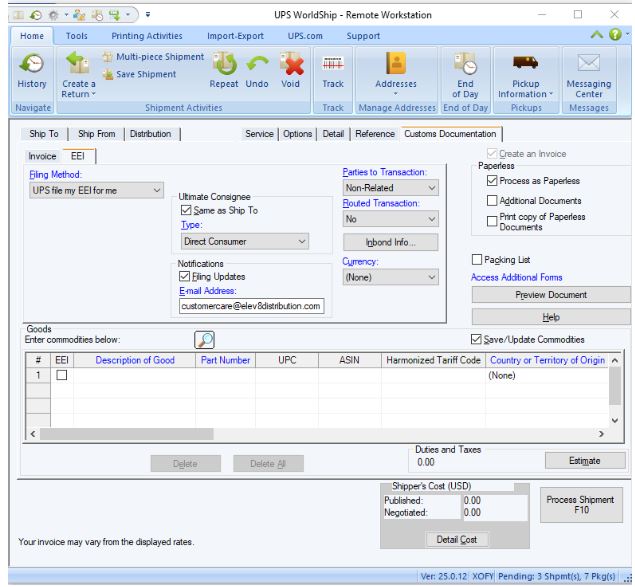
- IF A CATEGORY IS OVER $2500 YOU’LL NEED AN EEI…
Information for processing an EEI:
An Electronic Export Information (EEI) form is required for some shipments depending on the circumstances. This form is submitted by the shipping carrier to the United States Customs and Border Patrol (CBP) through their Automatic Export System (AES) and will require us to provide specific information about the shipment or about items in the shipment.
- When is an EEI form required?
- CBP will require an EEI form if we declare more than $2,500 worth of a single commodity. So if a shipment has more than $2,500 worth of vaporizers (aromatherapy diffusers) we will have to file an EEI.
- Some countries require an EEI form to be filed for all imports by default. This is rare but we will occasionally encounter it.
- Countries who are members of the USMCA (formerly known as NAFTA) do not require EEIs for exports and imports that are covered by the agreement. This means that shipments going to Canada and Mexico do not require an EEI regardless of the shipment’s retail value. Shipping carriers will sometimes require the EEI to be filed regardless and there’s not much we can do about that.
- What should I know before filing an EEI?
- On the EEI form you only need to provide information for the specific commodities that are triggering the EEI requirement.
- So if you have to file an EEI because you have more than $2,500 on a single commodity code, you only need to include information about that specific commodity on the EEI form. If there are multiple tariff codes with values that are greater than $2,500 then provide information for all of those, but you do not have to provide information for any commodities that have values which are less than $2,500.
- Fedex and UPS both have very different approaches to the EEI filing. In both cases we will file the EEI and use Fedex or UPS as our filing agent.
- Filing an EEI with UPS is a lot more automated than with Fedex. UPS WorldShip will inform you that you need to file an EEI and will guide you through all of the required information. If something is missing the program will not allow you to process the shipment until it has been corrected.
- Filing an EEI with Fedex is more complicated.
- How do I file an EEI through UPS WorldShip?
- Click the “EEI” tab and make sure that the option to file using UPS as our filing agent is selected.
- Fill out as much information as possible, if anything is missing UPS won’t let you process the shipment and the program will tell you what information is still needed.
- Once UPS WorldShip has all the information it needs you can process the shipment and UPS will handle everything from there!
Specific Instructions for Filing the EEI in UPS WorldShip
- Click into the “EEI” tab (next to “Invoice” under the “Customs Documentation” tab) and make sure that Filing Method is set to “UPS file me EEI for me”
- In the “Goods” section where you declared the specific commodities with their values and tariff codes, click the box that says “EEI” next to any product that is triggering the EEI requirement.
- So if you have more than $2,500 worth of Aromatherapy Diffusers on your customs declaration you need to check the “EEI” box next to each good that uses that tariff code.
- Add the following information to these boxes under the “Goods” section if you haven’t already:
- EEI = Checked.
- Description of Good = Tariff category (i.e. Aromatherapy Diffuser, Steel Parts, etc)
- Part Number = Use our internal SKU here.
- Harmonized Tariff Code = This is also known as the Harmonized Code, Tariff Code, or Schedule B Number. We have all of the tariff codes that we use on a piece of paper underneath the clear plastic on the shipping desk. They look like this: 7013.10.5000
- Country or Territory of Origin = United States of America (even on parts or products from China, these are being sold from the U.S. not from China)
- Units = how many products you have in this category.
- Unit of Measure = This should be “each” or “number” unless UPS throws an error code requesting a specific unit of measure.
- Unit Price = this is the price of each individual product or ‘unit’. If you have 30 glass accessories and the total price for them was $300 then your unit price is $10.
- Currency = should be USD or United States Dollar, although it may not require this field to be filled out.
- D/F = D. This is “domestic” or “foreign”, all of our products are considered domestic so use D.
- License Type = NLR or ‘No License Required’.
- Schedule B Number = This the H.S. Code/Harmonized Code/Tariff Code, AKA that number that looks like 7013.10.5000. Whatever tariff code you entered under “Harmonized Tariff Code” is the same code that you will enter into this box.
- Schedule B Units 1 = Enter the same value that you entered in “Units” above.
- Schedule B Unit of Measure 1 = Enter the same value that you entered in “Unit of Measure” above.
- Gross Weight = Estimate the weight of all of the items declared in this category.
- Lbs, Kgs = Lbs
- Export Information Code = this will be set to OS by default and should not be changed.
- Follow all the basic Wholesale and Retail “Packing Procedure”
- International orders get the normal tape on the box PLUS tape over and around all the seams just like all boxes over 14”
- THE INVOICE CANNOT SAY “VAPE, VAPORIZER, OR VAPING” ANYWHERE!
- If the box is larger than 14” tape the black corner supports to it.
- Fill out the ShipStation form as normal. TRIPLE CHECK THE ADDRESS!
- You’ll see an error flag until you fill out the Customs Declarations
- Unless there’s a specified Shipping Service don’t browse rates until after the Customs Declarations are filled out
- Grab the invoice and break it down into the Tariff Categories ( Glass Accessories, Aromatherapy Diffusers, Steel Parts, etc)
- If this is a large order or a wholesale order this could take 20 minutes with all the categories and counting.
- For each category you’ll need to know the total dollar amount and how many of each item there is. ( ex. 35 pieces of glass = $1360 @ $38.85 each)
- Do this for EACH category until the whole invoice is grouped…
- (example) Glass Accessories $1360/ 35 pieces = $38.85 each
- Steel Parts $420/ 75 pieces = $5.60 each
- Aromatherapy Diffuser …..etc.
- When that’s done Add the totals of each category to make sure it equals the total on the invoice before taxes and shipping…if it doesn’t you’ve missed some items.
FILLING OUT CUSTOMS DECLARATIONS
- UNDER THE “CREATE + PRINT LABEL” BUTTON STARTS THE DECLARATIONS. FILL THEM IN AS FOLLOWS…
- “Select Contents” = “ Merchandise”
- “If Undeliverable” = “Return to Sender”
- “Duties Paid” = WILL AUTO-FILL
- “Postage Paid” = WILL AUTO- FILL
- Start with Declaration #1 (which should be blank from clearing them earlier, if it’s not blank “Delete” all declarations to start fresh.
Declaration 1
- “Description” – Fill in your Tariff Category ( Aromatherapy Diffuser, Glass Accessories, etc)
- Get your tariff code here
- “SKU” – Enter the SKU from one of the items in this category
- “Quantity” – Enter the number of items counted off the invoice for this category (ex. Glass Accessories, 35 pieces)
- “Item Value” each- Enter the TOTAL Dollar amount in the category divided by the number of items (ex. $1360 divided by 35 = $38.85 each)
- “Total Value” – WILL AUTO- FILL
- “Harmonization” – Enter the Tariff Code off the Tariff Code Paper near the shipping computers or from the Harmonized Tariff Schedule Codes For Elev8 Distribution, without periods or spaces (ex. Glass Accessories 7013105000)
- “Country of Origin” – United States for most categories. China for Screens, Picks, and some others. If you’re unsure, ASK.
- Press the “ Add Declaration” button to add another category and do the same with Steel Parts, Aromatherapy Diffuser, etc if needed.
- If it’s a small order with only 1 category you’d only have 1 Declaration to fill out and you’d see no error flags near the “Create + Print Label” button.
- From here you’d either “Browse Rates” by pressing the calculator icon or choose their preferred Shipping Service, then press “ Create + Print Label”
When a unit comes in for repair we want the unit to go out working like new, as well as looking as new as possible.
- Read the trello card in Vape Repairs Board and see what the customer says is wrong
- Document the unit with images and what you see to be wrong in the trello
- Check the dimmer
- Check the heater
- Check the weld on the disc
- Check the power cord for any frays or wear by the housing and the plug.
- Whip unit down